
The Stemulator
Free Online Stem Mixer
Got the stems? Drop them in and make your own version: take the drums out for an underscore, clear space for a voice-over, or mute just the bits you don’t want.
- Real studio stems, not an AI guess
- Nothing uploaded
- Fit your mix to any length
- Free
Drop your stems here
The stems zip as you downloaded it (no need to unzip), or the WAV, MP3 or FLAC files. Nothing is uploaded: it all happens in your browser.
Your stems
Patreon supporter? Sign in with Patreon to open your stems straight from your account, no download needed.
No stems to hand? Have a play with a demo set.
Stems come with the Pro License on tracks that have them: use the download link in your order email to get the zip. What are stems?
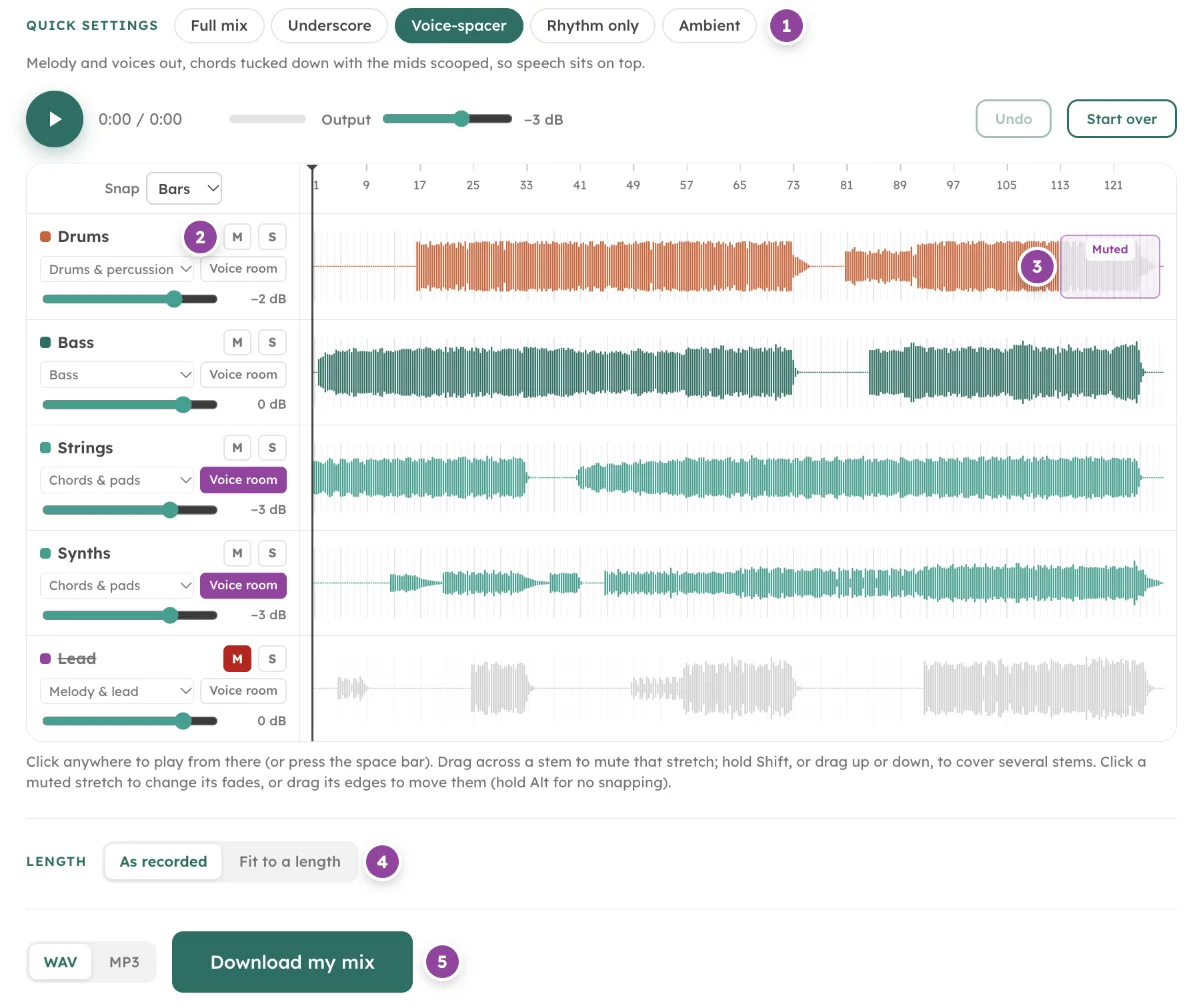
Click anywhere to play from there (or press the space bar). Drag across a stem to mute that stretch; hold Shift, or drag up or down, to cover several stems. Click a muted stretch to change its fades, or drag its edges to move them (hold Alt for no snapping).
Quiet from the start of the stretch, back to full by its end.
LevelKeep editing on the full-length stems above; this makes your mix the length you need, on the beat. The edit points are chosen from the full track, so they land in the right places whatever you’ve muted.
Everything happens in your browser; your files are never uploaded. MP3 encoding by LAME.
How to use it
Load your stems
- Bought a Pro License? Get the stems zip from the download link in your order email, then drop the whole zip on the box. No need to unzip it.
- Patreon supporter? Sign in with Patreon and “Your stems” lists every track you have stems for. Click one and it opens straight from your account, no download needed.
- Or click Choose files and pick the zip, or the WAV files from it.
- No stems yet? Hit “Try the demo stems”.
Make it yours
- Quick settings: Underscore drops the drums, Voice-spacer clears room for a voice-over.
- M mutes a stem, S plays it on its own, and the slider sets its level (double-click it to reset).
- Drag across a stem to mute that stretch. Hold Shift, or drag up or down, to cover several stems.
- Click a muted stretch to turn it down instead of muting, choose its fades, or apply it to all stems.
- Drag its edges to make it longer or shorter. They snap to bars; hold Alt for no snapping.
Listen and download
- Click anywhere on the stems or the bar numbers to play from there, or press the space bar.
- Need a set length? Choose “Fit to a length”, type it in or pick one, and your mix is edited to fit on the beat, keeping the real ending. “Try another version” picks different edit points.
- Undo steps back, Start over clears everything.
- Choose WAV (full quality) or MP3 and hit Download. You get one file, as long as the original or the length you chose.
- Your settings are remembered in this browser, so you can come back to a track later.
What it looks like
- Quick settings: one-click mixes, like Underscore or Voice-spacer.
- Each stem: M mutes it, S plays it on its own, the slider sets its level.
- A muted stretch: drag across a stem to make one. Click it for fades, or drag its edges to resize it.
- Length: keep it as recorded, or fit your mix to a length.
- Download: choose WAV or MP3 and get your mix.
What files work?
- WAV is best. MP3 and FLAC work too. A zip of them is fine, as it comes.
- One file per part (drums, bass, chords and so on), up to 16 of them.
- All the same length, all starting at the same moment, the way stems come out of a music program. My stems are already like this.
- Names help: it works out what each stem is from its file name (“Track – Drums.wav”, “track_bass.wav”), which is what the quick settings use. If it guesses wrong, change it in the box under the stem’s name.
Fitting a track without its stems? The Lengthinator does that for any of my tracks. New to stems? Here’s what they are and why they’re handy.
Questions
What are stems?
The separate parts of a track (drums, bass, chords, melody and so on) as individual audio files. Play them all together and you get the full track; leave some out and you get a new version. The stems guide explains more.
Where do I get stems?
They come with the Pro License on tracks that have them, and with Patreon.
How do I load my stems?
Bought a Pro License? Use the download link in your order email to get the stems zip, then drop the whole zip on the box at the top of this page (or click Choose files). There’s no need to unzip it. Patreon supporters can sign in with Patreon instead, and every track they have stems for is listed under “Your stems”, ready to open with one click.
What files can I use?
WAV is best, and MP3 and FLAC work too, either loose or in a zip. Use one file per part, up to 16, all the same length and starting at the same moment (the way stems come out of a music program; mine already do). It works out what each stem is from its file name, such as “Track - Drums.wav”, and if it guesses wrong you can change it in the box under the stem’s name.
Do my files get uploaded?
No. The stems are opened and mixed in your own browser, so nothing leaves your computer.
How do I take the drums out of a track?
Load the stems, then press M on the drums (or choose Underscore, which does it for you) and download. Because these are the real studio stems, the drums are simply gone, with none of the watery leftovers you get when an AI splitter guesses the parts out of a finished mix.
Is this better than an AI stem splitter?
For my tracks, yes. AI splitters guess the parts out of the finished mix, so you hear smears and bits of other instruments. The Stemulator uses the actual stems from my sessions, so every part is clean, and it can fit your mix to any length too. It only works with stems, though, so for other music an AI splitter is still the way.
What does Underscore do?
It takes the drums and percussion out. That’s the quickest way to turn a track into a laid-back bed for talking, tutorials or calmer scenes.
And Voice-spacer?
It takes out the melody and voices, tucks the chords down a little and scoops the middle frequencies where speech lives, so a voice-over sits clearly on top.
How do I mute just part of a stem?
Drag across the stem where you want it quiet; hold Shift, or drag up or down, to do several stems at once. It snaps to bars. Click the muted stretch to turn it down instead of muting it, or to choose how quickly it fades out going in and back in coming out. To change its length, drag either edge (hold Alt to stop it snapping).
Why doesn’t the full mix sound exactly like the released track?
The released track has a final mastering stage on top. The stems are the parts before that, so the full mix here is very close but a touch less polished and loud.
Can I make it a different length too?
Yes. Under the stems, choose “Fit to a length” and type the length you need (or pick one). It edits your mix on the beat and keeps the real ending, using the same engine as the Lengthinator. The edit points are chosen from the full track, so muting stems doesn’t throw them off, and “Try another version” gives you different ones.